
Zoom Limitations Overview
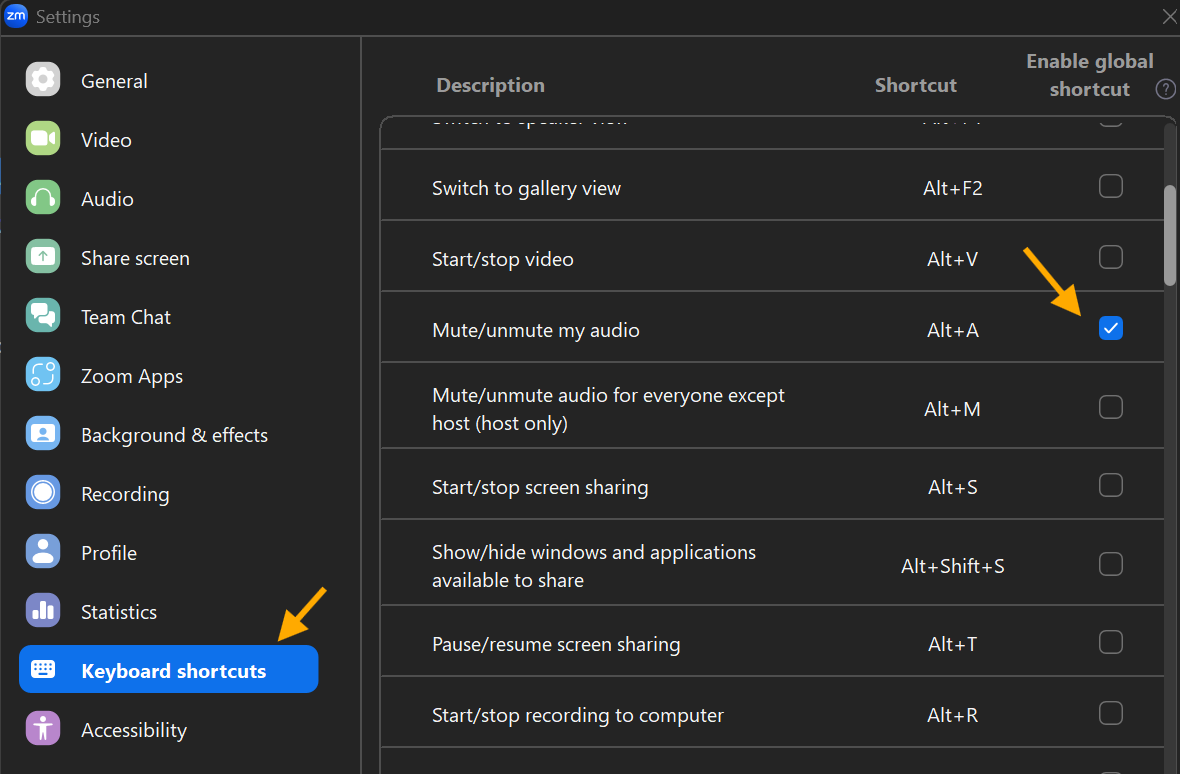
⚠️ Before using Zoom Sync Mode, verify that Enable Global Shortcut is enabled for Zoom's Mute/Unmute Audio shortcut.
Understanding Zoom Mute
Think of your microphone as a faucet and Zoom as a bucket beneath it. MicStatusPro controls whether water flows at all. Zoom only controls whether Zoom collects the water.
- Windows Microphone Mute (Hardware Cut): This is what MicStatusPro does. It shuts off the main water valve at the wall (your computer's operating system). When this is muted, no app on your computer can hear anything, no matter what.
- App-Level Mute (Software Filter): This is what Zoom does. It leaves the main valve turned on, but stops Zoom from collecting the water. Zoom mutes audio within the Zoom application, but your microphone remains active at the operating system level.
🔒 Privacy Advantage
When MicStatusPro mutes your microphone, Windows itself blocks microphone access. No application, including Zoom, Teams, browsers, or other software, can receive microphone audio until you unmute.
How Zoom Mute Works
Zoom handles muting differently than operating-system-level mute:
| Zoom Action | Zoom Behavior | Hardware Microphone Status |
|---|---|---|
| Unmute in Zoom | Zoom turns on audio and enables the Windows microphone | ✅ Active |
| Mute in Zoom | Zoom stops sending audio, but your Windows microphone remains active | ✅ Still Active |
Important: Muting Zoom does not turn off the Windows microphone. It only stops Zoom from transmitting audio.
Why Zoom Can Get Out Of Sync
Zoom and Windows track microphone status independently. If one changes without the other being updated, the indicators can temporarily show different states. MicStatusPro works to keep them synchronized automatically.
How MicStatusPro Keeps Zoom in Sync
MicStatusPro uses Zoom's keyboard shortcuts and interface controls to keep Zoom's mute indicator synchronized with the Windows microphone state.
When you mute or unmute using MicStatusPro:
- It instantly mutes or restores your hardware microphone (the main valve).
-
It automatically sends the Zoom mute shortcut (
Alt+A) and updates Zoom's mute indicator whenever possible.
This provides operating-system-level microphone control while keeping Zoom's microphone indicator synchronized with your actual microphone status.
Required Zoom Settings
For reliable synchronization, verify that the following Zoom setting is enabled:
- Go to Zoom Settings > Keyboard Shortcuts.
-
Find the shortcut for Mute/Unmute My Audio (
Alt+Aon Windows,Cmd+Shift+Aon Mac). - Make sure the checkbox for "Enable Global Shortcut" is checked. Without this, Zoom ignores mute commands when it isn't the active window on your screen.
Tip: Test Zoom Sync Mode by joining a meeting and muting your microphone with MicStatusPro. Both MicStatusPro and Zoom should immediately show the same mute status. If both indicators change together, Zoom Sync Mode has been configured correctly.
Known Zoom Sync Limitations
Zoom Sync Mode is highly reliable, but a few situations can prevent MicStatusPro from updating Zoom's mute indicator. This creates a few natural limitations to keep in mind:
Zoom Interface & Language Limitations
- Interface Updates: If Zoom significantly changes its interface, MicStatusPro may temporarily be unable to locate Zoom's mute controls until a compatibility update is released.
- Non-English Zoom Languages: Zoom synchronization may not work correctly when Zoom is configured to use a language other than English.
Common Symptoms
MicStatusPro shows muted, but Zoom shows unmuted
Cause: Zoom did not receive the mute command or has become out of sync.
Fix: Verify Enable Global Shortcut is enabled. If it already is, toggle mute once in MicStatusPro to re-synchronize.
Zoom shows muted, but MicStatusPro shows unmuted
Cause: Zoom and MicStatusPro have become out of sync.
Fix: Toggle mute once in MicStatusPro to re-synchronize.
Synchronization stopped after a Zoom update
Cause: Zoom changed its interface.
Fix: Check for a MicStatusPro update.
What You Should Expect
- ✅ Muting in MicStatusPro immediately mutes the Windows microphone.
- ✅ Zoom will usually update to the same mute status automatically.
- ✅ Both mute indicators should normally match.
- ⚠️ If they don't, review the Common Symptoms section below.
In most environments, Zoom Sync Mode keeps Zoom and Windows microphone status synchronized automatically while providing the additional privacy benefits of operating-system-level microphone control.